TradingView-style charts for MetaTrader 5

CheapTrader is a Windows program that shows your MetaTrader 5 prices in a chart modelled on TradingView’s. Draw a long or short position on the chart and send it to your broker, write indicators in Python, or replay old prices bar by bar on a paper account.

Download for Windows All downloads and checksums

Installer, about 58 MB. Windows 10 or 11, 64-bit. MIT licence.

MetaTrader 5 keeps the connection to your broker. CheapTrader reads prices from it and sends orders through it. Windows will probably say it “protected your PC”, because the program is not code-signed: what to click.

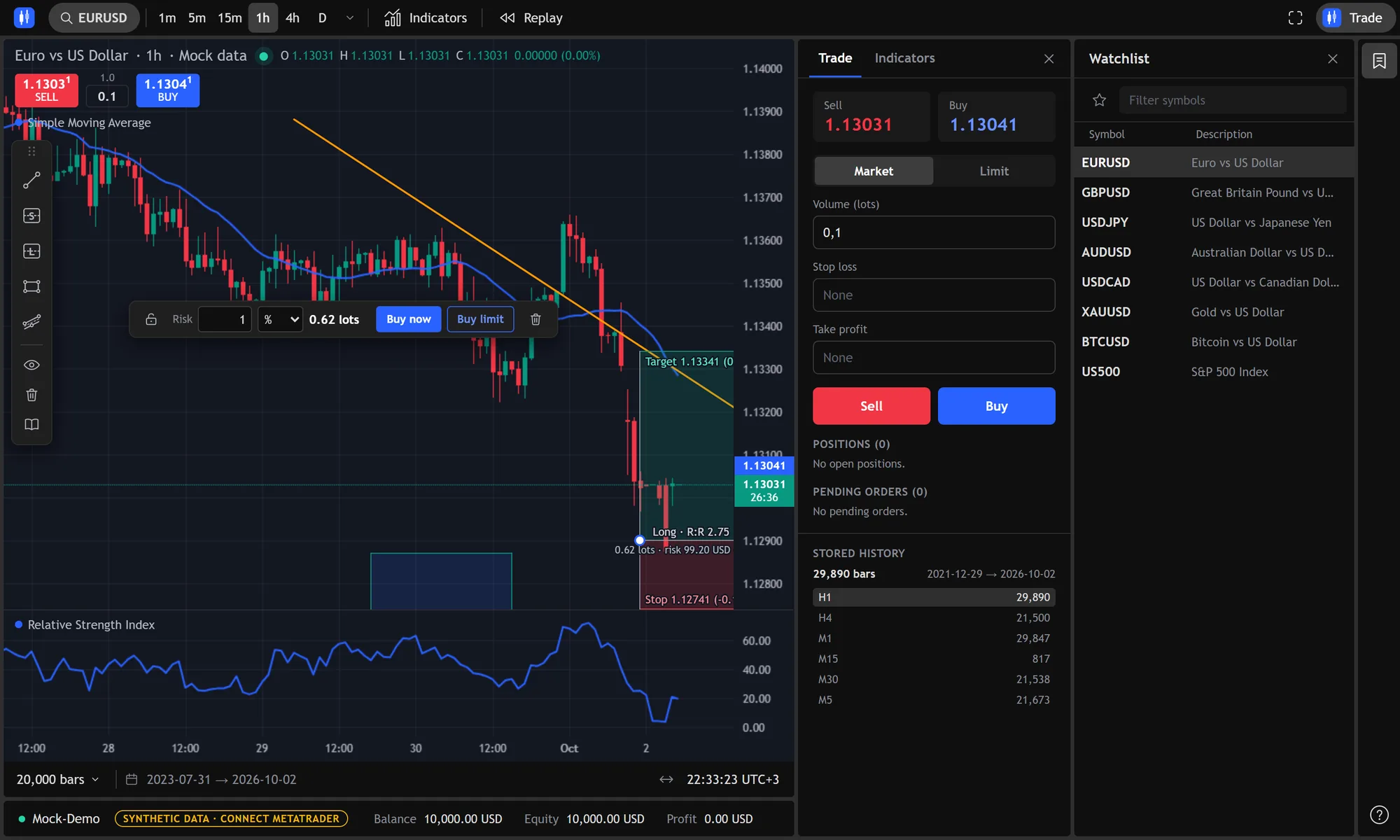
CheapTrader with an EURUSD hourly chart: a moving average, a trend line, a long position box with a risk field and Buy now and Buy limit buttons, an RSI pane below, the Trade panel and a watchlist on the right
EURUSD on the built-in synthetic market: a moving average, a trend line, a long position box with its Buy now and Buy limit buttons, and an RSI pane. The pictures on this page show that synthetic market, not real prices or a real account.

What it does

Draw the trade, then send it

A long or short position box sits on the chart as it does in TradingView: entry, stop loss, target and the risk-to-reward ratio. In CheapTrader the box can also place the trade. Buy now or Sell now sends a market order with the box’s stop and target. Buy limit leaves a pending order at the box’s entry. The size comes from the distance to the stop: a percentage of your balance, a fixed amount of money, or a number of lots.

Orders
Market, limit and stop. Waiting orders are drawn on the chart and can be dragged.
Stop and target
Drag the tags on the chart or type the price. Both go to the broker with the order.
Drawings
Trend line, rectangle, parallel channel and the two position boxes. Saved per symbol; each one can be locked.
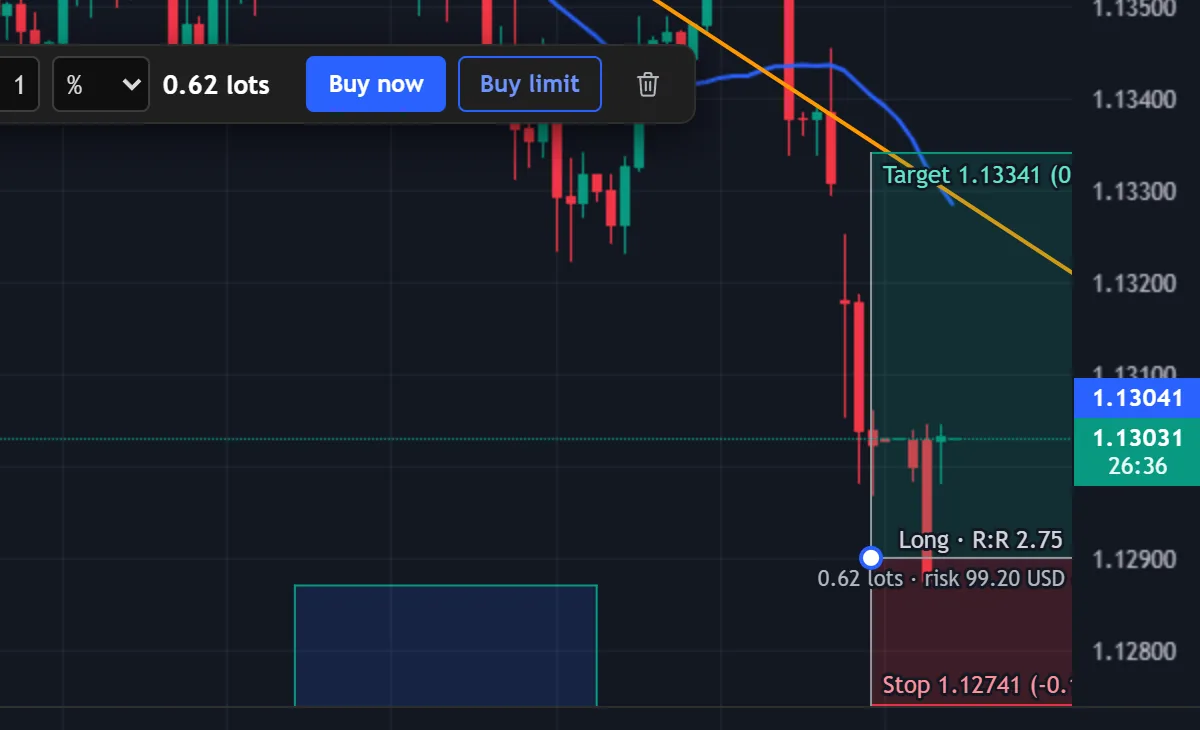
A long position box on the chart with its bar: a risk field set to 1 percent, 0.62 lots, and the Buy now and Buy limit buttons; the target, the stop and the risk-to-reward ratio are written on the box
A long position box. Its bar sizes the trade from the distance to the stop (here 1% of the balance, 0.62 lots) and sends it with Buy now, or leaves it waiting with Buy limit.

Indicators are Python functions

Six indicators are built in: SMA, EMA, Bollinger Bands, RSI, MACD and a range box, which draws the high-low range of the last 50 bars as an example of an indicator that draws shapes. For anything else you write a function that receives the candles as a pandas table and returns the lines to draw. It can draw on the price or in a pane of its own, and it can add shapes such as lines, boxes and labels.

def compute(df, params):
    n = int(params.get("period", 14))
    # df: time, open, high, low, close, tick_volume
    return {"Momentum": df["close"].diff(n)}
Sandbox
Imports are restricted. A run is stopped after 10 seconds or 2 GB of memory; both limits are settings in the .env file.
Editor
Write, save and switch on indicators in the Indicators panel. The documentation opens inside the program.
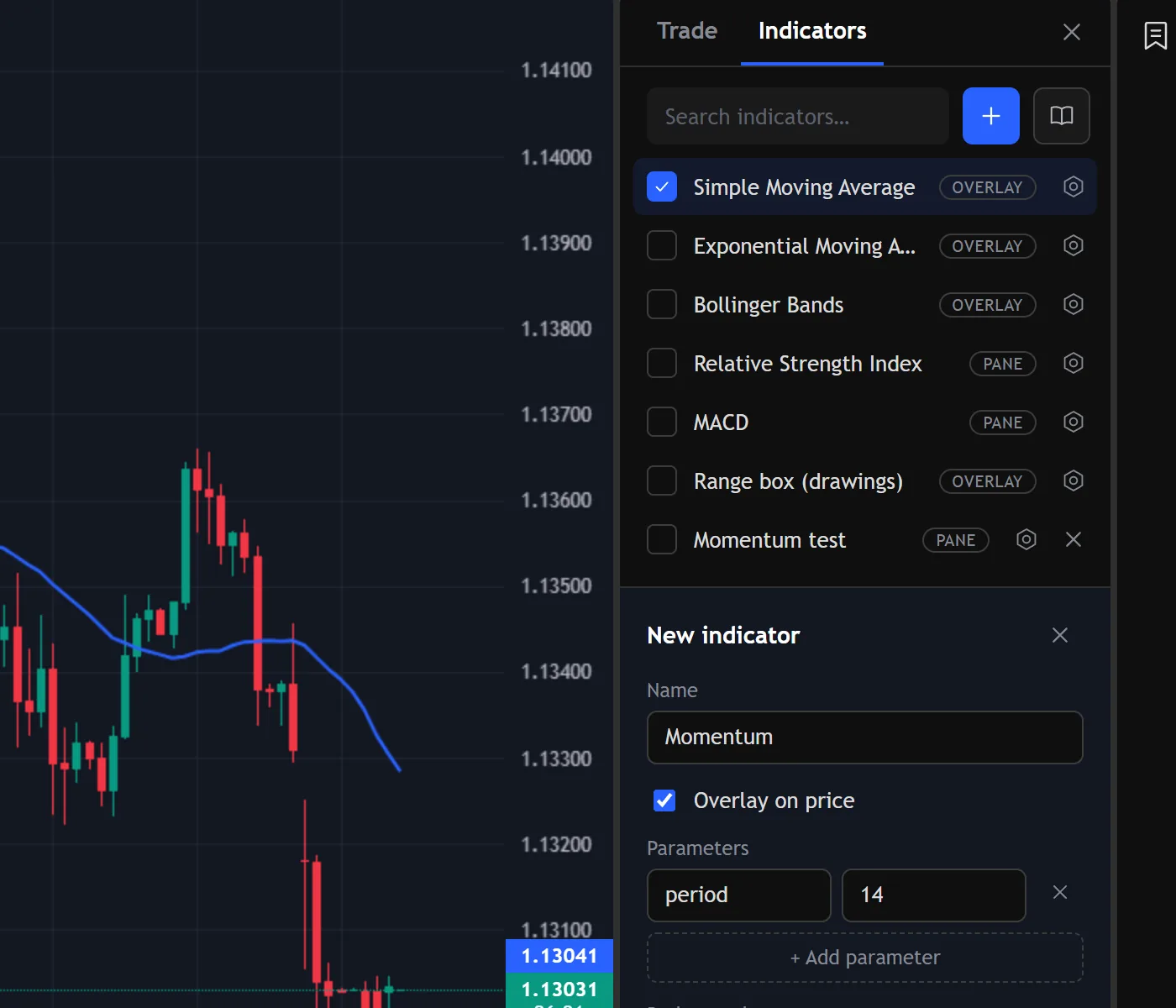
The Indicators panel listing six built-in indicators and one the user wrote, with the form for a new indicator open below it
The Indicators panel: the built-in indicators, one of your own, and the form for a new one.

Replay old prices on a paper account

Click a bar and the replay starts there. Everything to the right of it stays hidden until the replay reaches it. Play, pause or step with the keyboard, at 0.5 to 50 bars per second. Buy and sell work as they do live, with stop loss and take profit. Every order fills at the close of the bar the replay is on, and stops and targets are checked bar by bar.

The paper account is a profile. Make as many as you like, each with a starting balance you choose. A profile keeps its balance and its trades when a replay ends and when you close the program. You can rename it, start it over or delete it from the menu next to the Replay tag.

Report
Equity curve, net profit, profit factor, win rate, maximum drawdown, average win and loss, and every trade with its symbol and how it ended.
Open positions
A position still open when a replay ends is closed at the last price and listed as “Replay ended”.
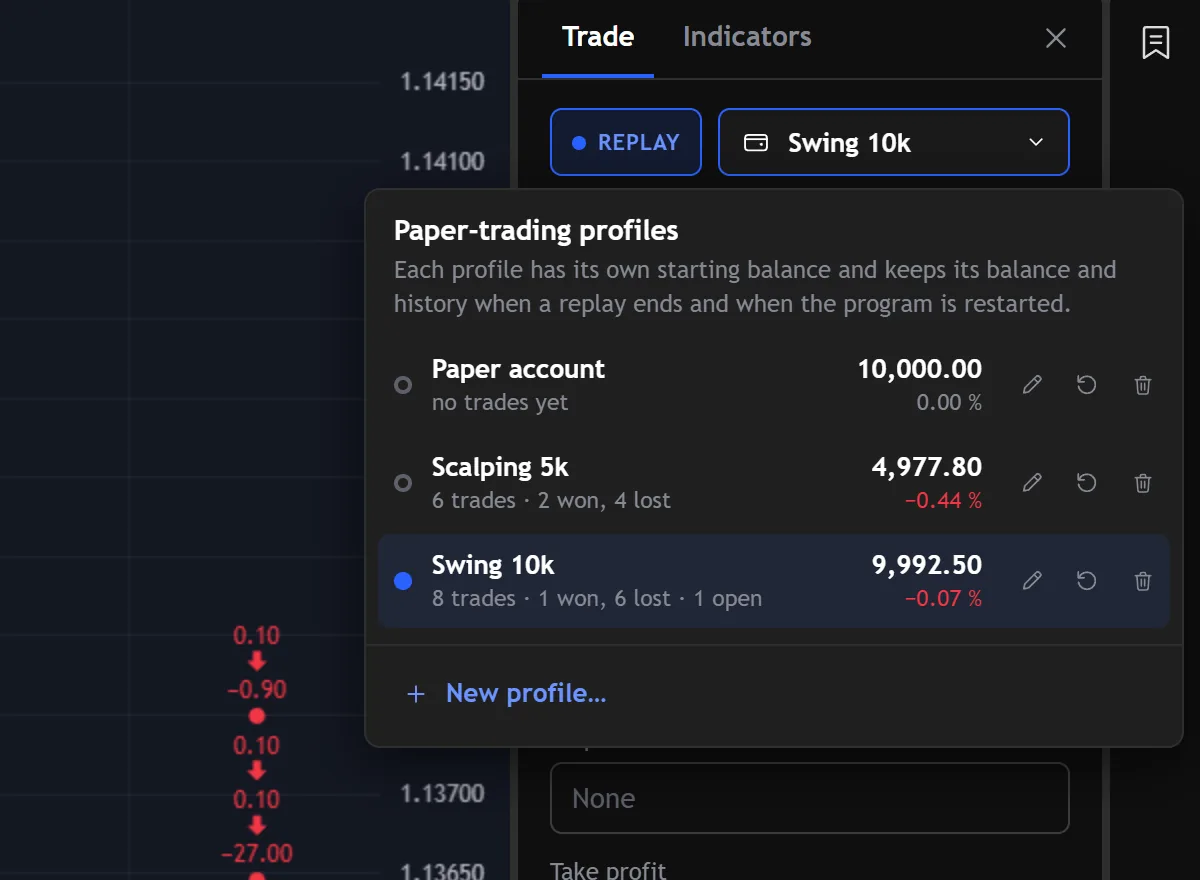
A running bar replay with the profile menu open, listing three paper-trading profiles with their balances, returns and trade counts; the one in use has an open position
A replay in progress. The menu lists the profiles; the one in use has a position open.

See how the account has done

The bar at the bottom of the chart shows the account’s return, its trades, win rate, largest drawdown and profit factor, worked out from your broker’s own history. Click the server’s name for the full report, the same one the replay has.

Trades
Every closed trade with its prices, how long it was held, what it cost in commission and swap, its result after those costs, and how it ended: stop loss, take profit, stop out or by hand.
Statistics
The figures of MetaTrader’s own report: expected payoff, recovery factor, Sharpe ratio, drawdowns, long and short trades, streaks, and what each instrument made.
Period
All time, this year, this month, this week or today. Deposits and withdrawals are left out of the curve and the percentages.
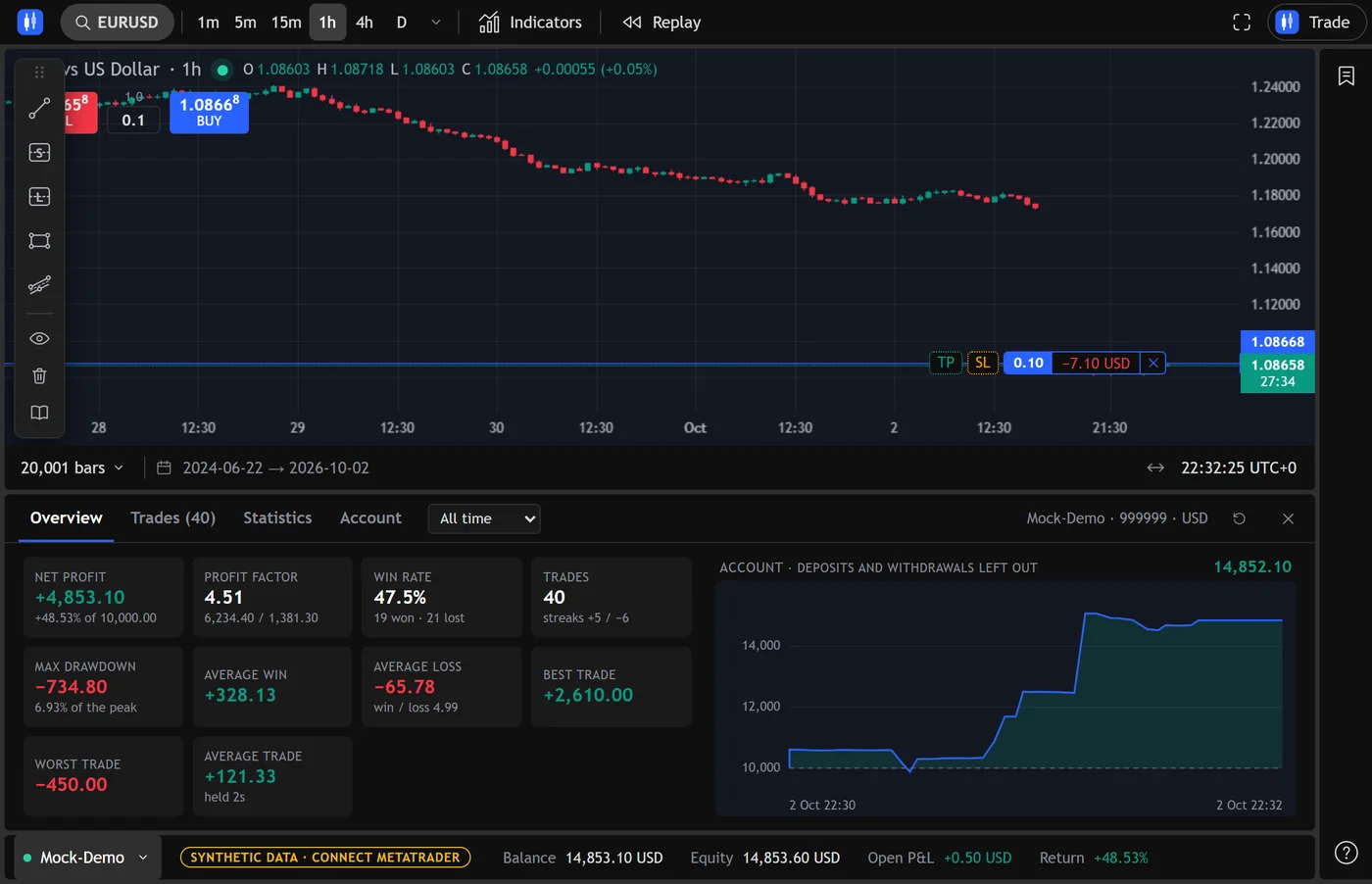
The account report open under the chart: tabs for Overview, Trades, Statistics and Account with a choice of period, ten figures such as net profit, profit factor, win rate and maximum drawdown, and the account’s curve beside them; the account bar below shows balance, equity, open profit and return
The account report, here for the simulated account. It only reads from the broker; it never sends anything.

It finds MetaTrader for you

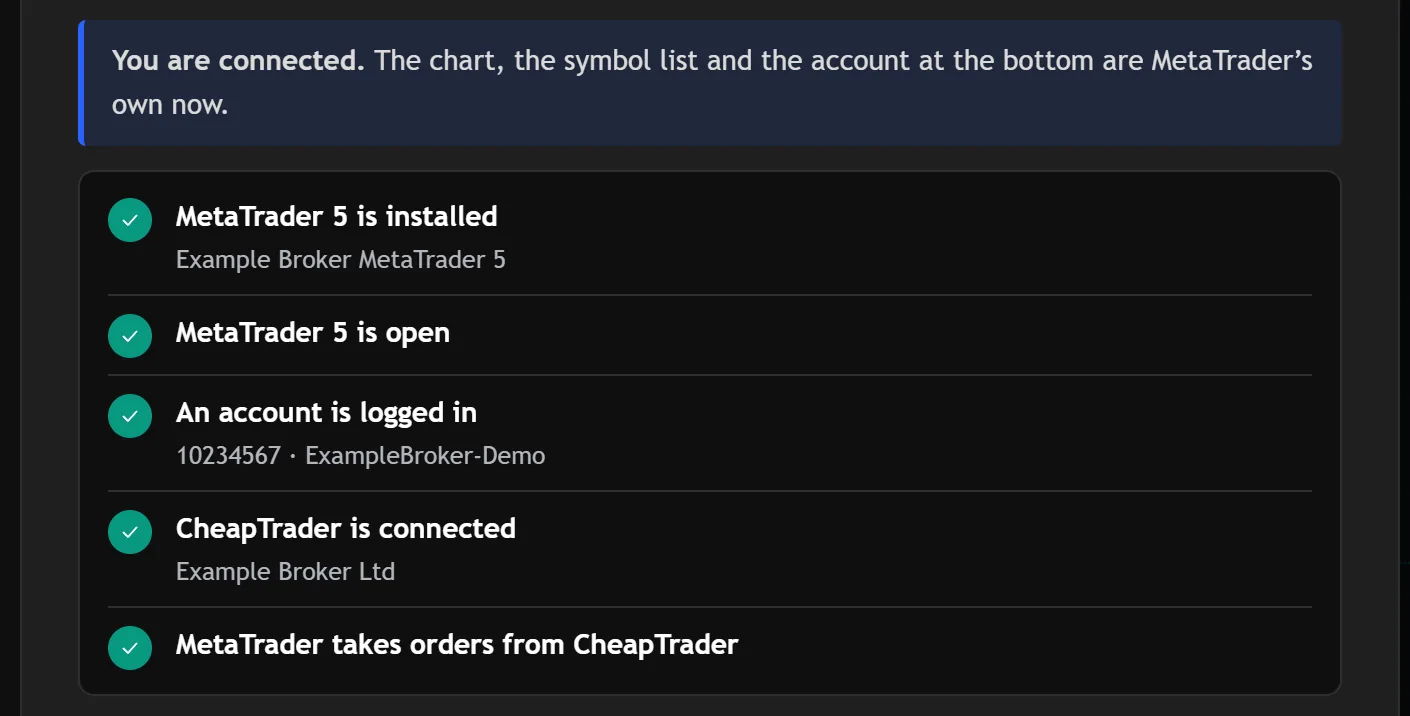
The first time you start it, a short tour checks four things: whether MetaTrader 5 is installed, whether it is running, whether an account is logged in, and whether CheapTrader is connected. It connects without a restart as soon as the answers are yes. There is no login number, password or file path to type.

Without MetaTrader the program still starts, on a synthetic market, so you can try the tools first.

The welcome tour's checklist with every item ticked: MetaTrader 5 is installed, is open, an account is logged in, CheapTrader is connected, and MetaTrader takes orders from it
The welcome tour’s checks, here against a simulated terminal.

Smaller things

  • Candles are built from every tick, with the terminal’s own highs and lows.
  • A watchlist of every symbol your broker offers.
  • Intervals from 1 minute to 1 month: 1, 5, 15 and 30 minutes, 1 and 4 hours, day, week, month.
  • History is fetched once and kept in a local database, so reopening a chart does not download it again.
  • The layout, the symbol, the interval and your drawings are remembered.
  • The MetaTrader window can be hidden from the program’s menu. A hidden terminal closes when the program does.
  • The program tells you when a newer release is on GitHub and can install it for you.

Install

  1. Install MetaTrader 5 from your broker and log in to a trading account. A demo account works. Leave it open; a minimised window is fine.
  2. Download the installer from the latest release and run it. It installs for the current user and needs no administrator rights. If you prefer, take the portable zip, unzip it anywhere and run CheapTrader.exe.
  3. Windows may show “Windows protected your PC”, because the program is not code-signed. Choose More info, then Run anyway. To check that the file is the one that was published, compare its SHA-256 with SHA256SUMS.txt on the release page:
    Get-FileHash .\CheapTrader-<version>-setup.exe -Algorithm SHA256
  4. The welcome tour opens by itself and connects to MetaTrader.

Updating

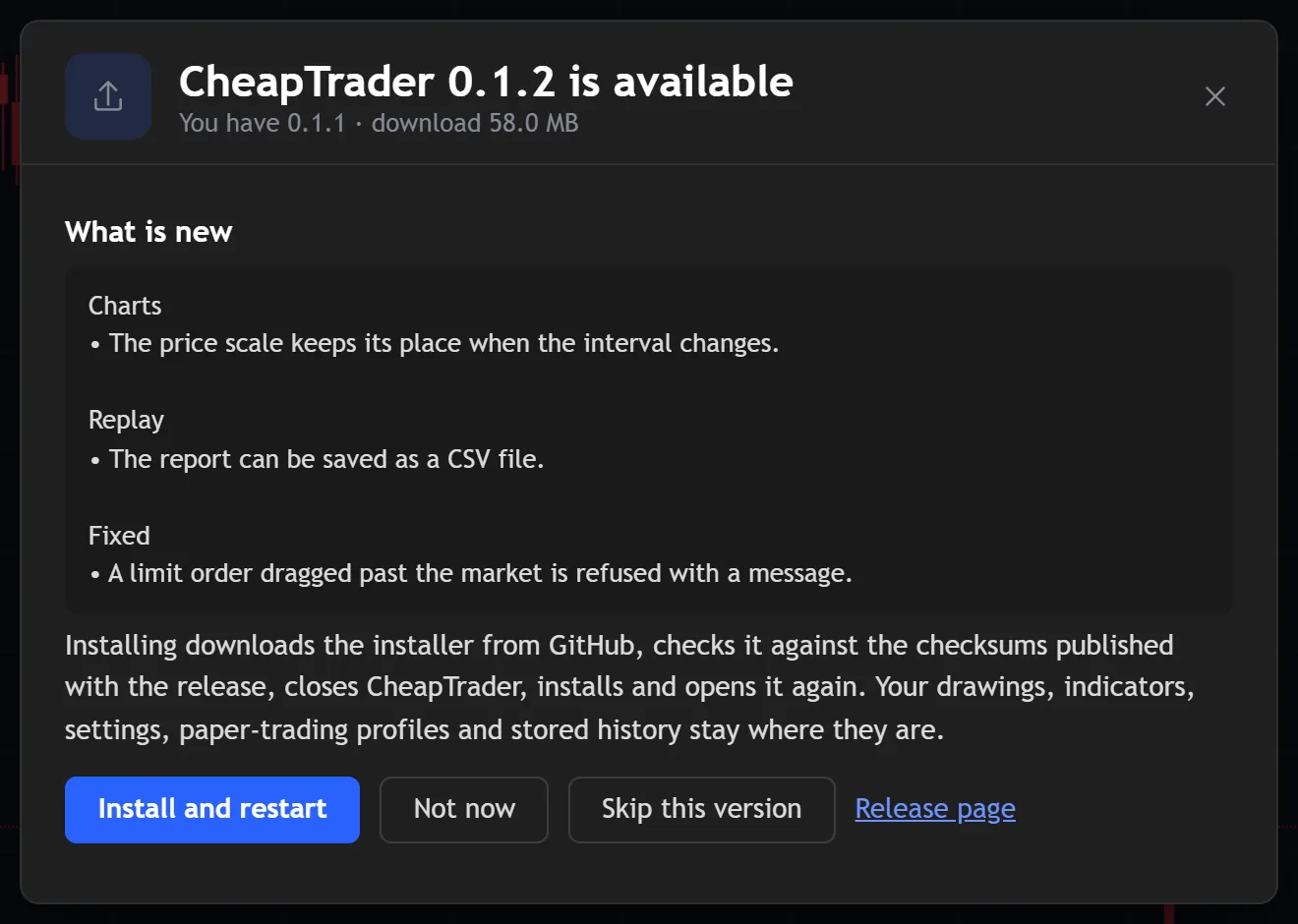
The program looks at GitHub’s release list when it starts and every six hours after that. When a newer release exists, an Update button appears at the top of the window. It shows what changed. If you click Install, the program downloads the installer, checks it against SHA256SUMS.txt, closes, runs the installer and opens again. Your data folder is not touched: drawings, indicators, settings, profiles and stored history stay where they are. A portable copy cannot install itself, so its update window links to the release page instead. You can switch the check off in the About window.

The update window: what is new in the release, a note that data stays where it is, and the buttons Install and restart, Not now and Skip this version
The update window. The release in this picture is made up.

Where your data is

In a folder called data next to the program, or in %LOCALAPPDATA%\CheapTrader\data when the program’s own folder is not writable. Uninstalling leaves that folder alone. The program writes its log to data\logs.

What it does on your PC

Orders from the program are off in a fresh install. You switch them on in the MetaTrader menu at the bottom of the window. MetaTrader’s own Algo Trading button has to be green as well.

The program listens on 127.0.0.1 only. It checks the Host and Origin of every request, so a web page you have open cannot place an order through it.

There is no account and no telemetry. The only connection to the internet is the update check against GitHub, which you can switch off.

Python indicators run in a separate process with the time and memory limits above. To report a vulnerability, see SECURITY.md.

What it does not do

  • It runs on Windows 10 and 11 only. The MetaTrader 5 package it uses to reach the terminal exists only for Windows.
  • It works with MetaTrader 5, not MetaTrader 4 or any other platform.
  • It does not trade by itself. There are no strategies, no automation and no Expert Advisor.
  • It is not code-signed, so Windows asks you to confirm the first start.
  • In a replay every order fills at the bar’s close, and limit and stop orders are not available.
  • Indicators are written in Python, not in MQL5.
  • There is no phone or browser version.

Recent changes

0.2.3
  • Indicators are run over every candle on the chart (20,000 by default), not just the newest 500. Their lines reach back as far as the candles do, and in a replay from far back they are there from its first bar on.
  • An indicator that needs more bars says so with one line, NEEDS_BARS = 60_000, and gets them.
0.2.2
  • Ending CheapTrader in Task Manager closes its window too, instead of leaving one that shows “127.0.0.1 refused the connection”.
  • Opening CheapTrader by hand while an update installs no longer makes the installer give up: that start waits for it.
0.2.1
  • Closing the program and opening it again within a few seconds could leave a window saying “127.0.0.1 refused the connection”, or open nothing. The second start now asks the running copy to stay, or waits for the copy that is ending and starts afresh.
  • Quit closes the window with the program. If the server ever stops by itself, the window is closed and a message says so.
0.2.0
  • The account’s results, worked out from the broker’s history. The bar at the bottom shows return, trades, win rate, drawdown and profit factor; the server’s name opens the full report with the trades, every statistic MetaTrader’s own report has, what each instrument made and what the broker says about the account.
  • The replay’s report is the same one and gains the Statistics tab.
  • Deposits and withdrawals are left out of the curve and the percentages. The report only reads from the broker.
0.1.3
  • After an update installed from the program, CheapTrader now opens again by itself. In 0.1.2 the update was installed but the program stopped with a “Failed to load Python DLL” message and had to be started by hand.
  • Updating from 0.1.2 still ends with that message once: click OK and start CheapTrader. From 0.1.3 on the restart is automatic.
0.1.2
  • When the MetaTrader window is hidden and you close the program, the terminal now closes with it. Before, it kept running with no window and no taskbar button, and had to be ended in Task Manager.
  • A terminal whose window is on the screen is never closed by the program, and one that does not close within ten seconds is shown again instead of being forced.
0.1.1
  • Paper-trading profiles for the replay. Each has a starting balance you choose and keeps its balance and trades when a replay ends and when you restart. Before, every replay began again with 10,000.
  • The program tells you when a newer release is on GitHub and can install it without touching your data.
  • A position still open when a replay ends is closed at the last price and listed as “Replay ended”.
  • Profit in a replay uses the broker’s tick value, so a yen pair no longer reads in yen.
  • A link to support the project on Ko-fi.

The 0.1.1 installer was rebuilt on the same day to include the items above.

0.1.0
First public release.

The whole changelog

Questions

Is it free?

Yes. It is open source under the MIT licence, with no paid version and no ads. If it is useful to you, bug reports and pull requests help most. You can also support it on Ko-fi.

Do I need MetaTrader 5?

For real prices and trading, yes. CheapTrader reads from your own MetaTrader 5 terminal, from any broker that offers MT5. A free demo account is enough.

Can it place orders without me?

No. It only sends what you click, and only after you have switched orders on. Trading carries a high risk of losing money, so try everything on a demo account first.

Is it affiliated with TradingView or MetaQuotes?

No. CheapTrader is independent. Its look is modelled on TradingView’s, and its charts are drawn by TradingView’s open-source Lightweight Charts library. MetaTrader 5 is a trademark of MetaQuotes Ltd.

Something does not work. Where do I say so?

Open an issue on GitHub and attach the last lines of data\logs.